
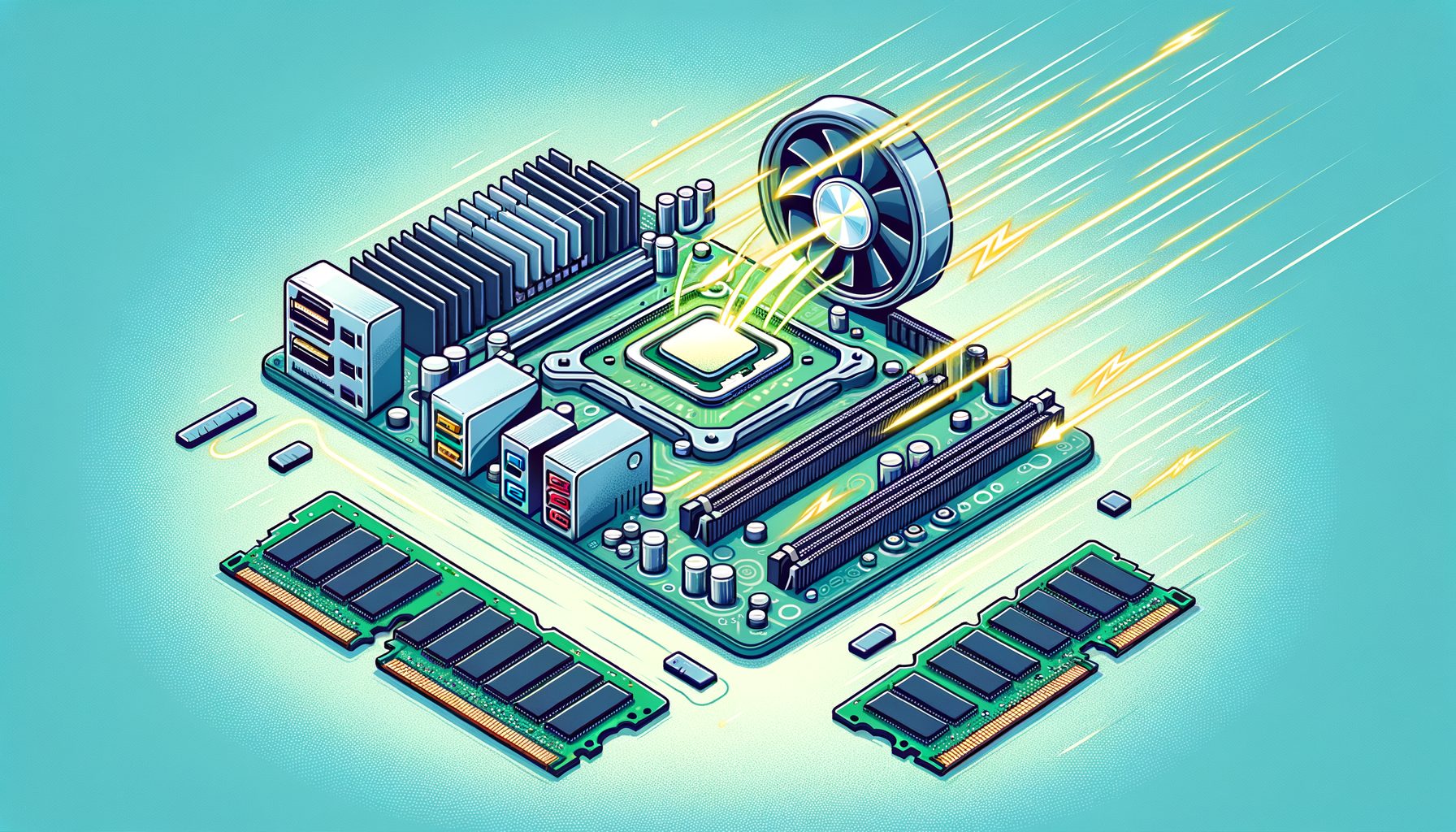
Stuttering games, crashing renders, underwhelming benchmarks—your CPU or GPU might not be to blame. Often, the real bottleneck hides in the motherboard chipset. By understanding how chipsets shape GPU and RAM speed and stability, you can dodge hidden slowdowns, choose parts that actually fit your goals, and unlock features you already paid for. In this guide, you’ll get a plain-language tour of how chipset design affects PCIe bandwidth, memory clocks and timings, firmware support, and overall system reliability—so you can build smarter and upgrade with confidence.
Why the Chipset Decides How Fast Your GPU Can Go
Your GPU’s performance does not live on the graphics card alone. The motherboard chipset dictates how PCI Express (PCIe) lanes are routed, which PCIe version is supported (3.0, 4.0, 5.0), and how many high-speed devices can operate simultaneously without starving your graphics card. Even if your CPU exposes PCIe 5.0, the board and chipset might downshift the GPU slot to PCIe 4.0 or limit secondary slots, which can alter real-world frame rates and content creation throughput.
Key factors controlled or influenced by the chipset include:
– PCIe version and lane layout: High-end chipsets usually offer more lanes and newer PCIe generations across more slots. Midrange and entry chipsets often provide fewer lanes and share bandwidth among M.2 drives, capture cards, and networking adapters.
– Bandwidth sharing via the chipset uplink: Many devices connected to the chipset travel over a single “uplink” to the CPU (Intel calls it DMI; AMD routes through the platform IO hub). Saturating this link with multiple NVMe drives or 10 GbE while gaming can add latency, especially if your GPU is also constrained to fewer lanes.
– Slot bifurcation and expandability: Want dual GPUs, multiple capture cards, or storage accelerators? Some chipsets and boards allow x16 to split into x8/x8 or x8/x4/x4; others do not. That detail matters for creators and streamers who juggle many devices.
Well, here it is: a quick summary of how PCIe generation affects raw bandwidth (per direction). The “Typical GPU Effect” column generalizes what reviewers often observe when a powerful GPU is artificially limited, though exact results vary by game, resolution, and card.
| PCIe Generation | Per-lane (x1) GB/s | x16 Total GB/s | Typical GPU Effect When Constrained |
|---|---|---|---|
| PCIe 3.0 | ~0.985 | ~15.75 | Up to noticeable losses on top-end GPUs at 1080p/1440p; less at 4K |
| PCIe 4.0 | ~1.969 | ~31.5 | Near “no loss” for current GPUs at x16; minor dips at x8 in bandwidth-heavy cases |
| PCIe 5.0 | ~3.938 | ~63.0 | Headroom for future GPUs; ensures fast asset streaming and pro workflows |
Real-world example: Many midrange boards wire the primary GPU slot as PCIe 4.0 x16 only, even if the platform advertises PCIe 5.0—cutting costs yet remaining fine for today’s cards. But if that same board drops to x8 when you populate certain M.2 slots (due to lane sharing), a bandwidth‑sensitive title or workload can dip a few percent. Conversely, premium chipsets with robust lane budgets let you run multiple NVMe drives at full speed plus a GPU at x16 without compromise.
What’s interesting too, features like Resizable BAR (AMD Smart Access Memory) rely on proper chipset and BIOS support. When enabled, the CPU can access the full GPU memory address space, improving performance in some titles. Learn more from AMD’s Smart Access Memory and NVIDIA’s Resizable BAR guide. For deeper bandwidth context, see PCI-SIG specifications and independent PCIe scaling tests such as TechPowerUp’s PCIe scaling analysis.
The Hidden Role of the Chipset in RAM Speed, Timings, and Stability
RAM speed often gets blamed on the sticks, but motherboard chipset and board design ultimately set the ceiling—especially under XMP/EXPO. While the memory controller physically resides in the CPU, the chipset steers memory topology (trace length, layer count), supported memory standards, and the firmware required for stable training and broad compatibility.
What matters most for memory speed and stability:
– Supported DDR generation: DDR4 boards cannot run DDR5. Across DDR5, some chipsets validate higher JEDEC rates and better XMP/EXPO profiles. Check the vendor’s Qualified Vendor List (QVL) for known-good kits.
– Slot layout and population: Two-DIMM motherboards (1 DIMM per channel, “1DPC”) commonly hit higher stable clocks than four-DIMM boards due to shorter traces and fewer signal reflections. If you need 64–96 GB, prefer two high-capacity sticks rather than four smaller ones for speed headroom.
– Firmware and microcode: Vendors ship memory training improvements via UEFI/BIOS updates (Intel microcode; AMD AGESA). The same board may fail at DDR5‑6000 on an older AGESA yet succeed after an update. Always update BIOS before troubleshooting instability.
– Platform “gearing”: Intel uses memory gear ratios (Gear 1/2/4), switching the memory controller clock relative to DRAM speed. Very high DDR5 often runs Gear 2 to keep the controller stable. AMD’s Zen platforms involve FCLK/UCLK/MCLK relationships; on AM5 (Zen 4), many users report a “sweet spot” around DDR5‑6000 with UCLK=MCLK for low latency, though results vary by CPU and board.
Practical guidance:
– If smooth frame pacing is your priority, pick a chipset and board with strong memory trace design and a proven QVL for your specific kit. On AM5, many builders target DDR5‑6000 with tight timings; on Intel 13th/14th Gen, DDR5‑6000 to 7200 is common with the right board and gear mode.
– To minimize crashes in long renders, begin at JEDEC speeds, then enable XMP/EXPO and test with tools like MemTest86 or Karhu. If errors appear, add a touch of DRAM voltage within safe ranges, relax tRAS/tRFC, or drop one speed bin. Stability beats a few percent more bandwidth in professional work.
– Avoid mixing memory kits. Even identical part numbers can hide different ICs over time, and training can only compensate so much when modules are mismatched.
For standards details, see JEDEC. For memory profile technologies, check Intel XMP and AMD EXPO. Motherboard makers also publish QVLs and BIOS notes that directly affect your achievable RAM speed and stability.
Firmware, Power Delivery, and Thermals: The Stability Triangle
Even with ample PCIe lanes and a fast memory kit, stability can collapse if platform firmware, power delivery, or thermals come up short. These factors often track with chipset tier because higher-end chipsets attract better components, more robust BIOS options, and longer support timelines. Then this: excellent midrange boards exist—if you know what to look for.
Firmware (UEFI/BIOS):
– Update cadence and vendor support matter. Chipset families that stay on the market longer typically receive more microcode refinements, improving memory training, PCIe device compatibility, and Resizable BAR behavior. Review BIOS release notes before buying.
– Advanced options: Boards with stronger firmware expose LLC (Load-Line Calibration), VRM switching frequency, and per-rail voltage controls. These tools help dial in RAM and GPU stability under heavy load or when overclocking.
Power delivery (VRM):
– VRM phase count and quality affect voltage ripple and heat. A cooler, cleaner VRM means fewer sudden dips that crash a render or cause micro-stutter. For a high-wattage CPU + flagship GPU, favor boards with well-reviewed VRMs and substantial heatsinks.
– Memory power rails also matter. Consistent VDD/VDDQ and VPP delivery improves RAM overclock success, especially above DDR5‑6000.
Thermals and board layout:
– Chipset heatsinks are not cosmetic. When the chipset warms up (for example, after hours of copying files across multiple NVMe drives), lanes can throttle or the controller can misbehave. Proper airflow across the chipset area stabilizes I/O.
– M.2 placement affects GPU temperatures and vice versa. Tight spacing can raise GPU temps, prompting higher fan speeds and potential noise or thermal throttling. Premium chipsets usually enable smarter M.2 layouts thanks to more flexible lane routing.
Actionable steps to gain stability today:
– Update to the latest stable BIOS before installing the OS or enabling XMP/EXPO.
– Set a moderate CPU power limit if your VRM runs hot; lowering transient spikes often reduces memory error rates.
– Run a stability suite: 30–60 minutes of a GPU load (e.g., a looped benchmark), plus a memory test, plus an I/O test copying large files between drives. If any part fails, tune voltages or reduce overclocks until passes are clean.
For platform update details, see AMD Chipset Drivers and Intel Download Center. Professional teardowns from channels like GamersNexus often analyze VRM thermals and firmware maturity on specific boards.
I/O Sharing, Latency, and How to Choose the Right Chipset for Your Build
Think of chipsets as traffic controllers. They connect SSDs, USB controllers, Wi‑Fi, Ethernet, and sometimes extra PCIe slots to the CPU over a single high-speed link. When several devices move data at once, latency spikes can surface. Creators who stream, record, edit on multiple NVMe drives, and game simultaneously should study I/O maps in the motherboard manual before buying.
What to watch:
– Chipset uplink bandwidth: Depending on platform, the uplink ranges from roughly PCIe 3.0 x4 to PCIe 4.0 x8-equivalent throughput. If you run two or three PCIe 4.0 NVMe drives at full tilt while transferring footage over 10 GbE, you may feel UI lag or slight frame pacing issues on budget chipsets.
– Lane sharing rules: Some boards disable SATA ports when you populate certain M.2 slots, or drop the GPU slot from x16 to x8. The manual usually includes a lane-sharing diagram—read it. High-end chipsets often avoid painful trade-offs.
– USB implementation: Not all “USB 3.2 Gen 2×2 (20 Gbps)” ports are equal. Some are native to the chipset, others use add-in controllers that also hang off the uplink. Heavy external storage usage can compete with NVMe traffic.
How to choose based on your use case:
– Competitive gaming: A midrange chipset with PCIe 4.0 x16 for the GPU, clean memory support (strong QVL), and a stable BIOS is enough. Focus on a board known for good RAM compatibility and low DPC latency.
– Streaming + content creation: Prioritize chipsets with more PCIe lanes and multiple CPU-connected M.2 slots. Ensure the board can keep your GPU at x16 even with two or three NVMe drives installed. Look for 2.5/10 GbE and USB 20 Gbps that do not bottleneck on the uplink.
– AI/compute and pro video: Consider platforms offering PCIe 5.0 for the GPU and at least one storage slot, ECC (if needed), and boards with excellent VRM cooling. Stability under sustained load is the top priority.
Quick checklist before you buy:
– Confirm the primary PCIe slot’s version and lane count with and without all M.2 slots populated.
– Check the memory QVL for your exact kit and capacity.
– Read BIOS release notes for memory and PCIe fixes. Favor chipsets with active support.
– Map your I/O: number of NVMe drives, capture cards, external SSDs, Ethernet speed. Match these to chipset lanes and uplink capacity.
For chipset capabilities and lane diagrams, see AMD’s chipset overview and Intel’s ARK chipset database. These official pages, plus your board’s manual, give the clearest picture of how your GPU and RAM will behave on a given platform.
FAQs: Motherboard Chipsets, GPU, and RAM
Q1: Does a better chipset always mean higher FPS?
A: Not always. If your GPU already runs at PCIe 4.0 x16 and your games are GPU-bound, a higher-tier chipset might not increase FPS. However, premium chipsets can prevent slowdowns when you add more NVMe drives or USB devices, and they often improve stability, latency, and features like Resizable BAR.
Q2: Why does my RAM’s advertised XMP/EXPO speed crash on my board?
A: Memory kits are rated “up to” with ideal conditions. Your board’s memory topology, BIOS version, and CPU memory controller quality all matter. Update BIOS, test at the next-lower speed bin, slightly increase DRAM voltage within spec, or try looser timings. Check the board’s QVL to confirm known-good compatibility.
Q3: Can multiple M.2 drives slow down my GPU?
A: On some boards, yes—if lanes are shared. Populating certain M.2 slots can reduce the primary PCIe slot from x16 to x8. Many modern GPUs lose little at PCIe 4.0 x8, but bandwidth-heavy workloads may notice. Read your motherboard manual to understand lane sharing.
Q4: Is PCIe 5.0 necessary for today’s GPUs?
A: For most users, PCIe 4.0 x16 is sufficient today. PCIe 5.0 is about headroom: it helps future-proof your build and can improve performance in storage- or bandwidth-heavy workflows. If budget is tight, a strong PCIe 4.0 platform can still be an excellent choice.
Q5: How do I test if my system is truly stable?
A: Use a layered approach: run a GPU stress test or long gaming session, a memory test (e.g., MemTest86), and heavy I/O (large file copies between NVMe drives). If all pass without errors or stutter, your chipset, RAM, and GPU settings are likely stable. If not, update BIOS, reduce overclocks, or adjust voltages.
Conclusion
Chipsets quietly shape everything your PC can do. You’ve now seen how PCIe versions and lane layouts affect graphics performance, why memory topology and BIOS updates determine RAM speed and stability, how VRM and thermals prevent crashes, and how I/O sharing changes latency when multiple devices run at once. With this knowledge, you can match your motherboard chipset to your goals—whether that is high-FPS gaming, professional content creation, or heavy multitasking without hiccups.
Act now: check your board’s manual, confirm lane sharing rules, update your BIOS to the latest stable version, and verify your memory kit against the QVL. If you’re planning a new build, map your devices (GPU, NVMe, capture card, network) and pick a chipset that keeps the GPU at full bandwidth while delivering the memory speed you want. A few minutes of planning can save hours of troubleshooting and unlock performance you already own.
Technology moves fast, but stable speed comes from smart choices. Choose a chipset that supports your present workload and your next upgrade, test carefully, and keep firmware current. Your system will reward you with smoother gameplay, faster renders, and fewer surprises. Ready to audit your setup today—and see what performance you can reclaim?
Sources and further reading: