
You plug in a blazing-fast SSD, a 4K webcam, and a VR headset—then wonder why the system stutters or file copies lag. Often the hidden culprit isn’t the CPU at all but the chipset and the way it coordinates input/output (I/O) across your devices. Many assume the CPU alone dictates performance. In truth, the platform’s I/O architecture—lanes, ports, controllers, and firmware—decides how smoothly apps talk to storage, peripherals, and networks. Here’s a plain-English tour of that “I/O orchestra,” so you can buy smarter, configure correctly, and troubleshoot like a pro.
What the Chipset Actually Does in the I/O Orchestra
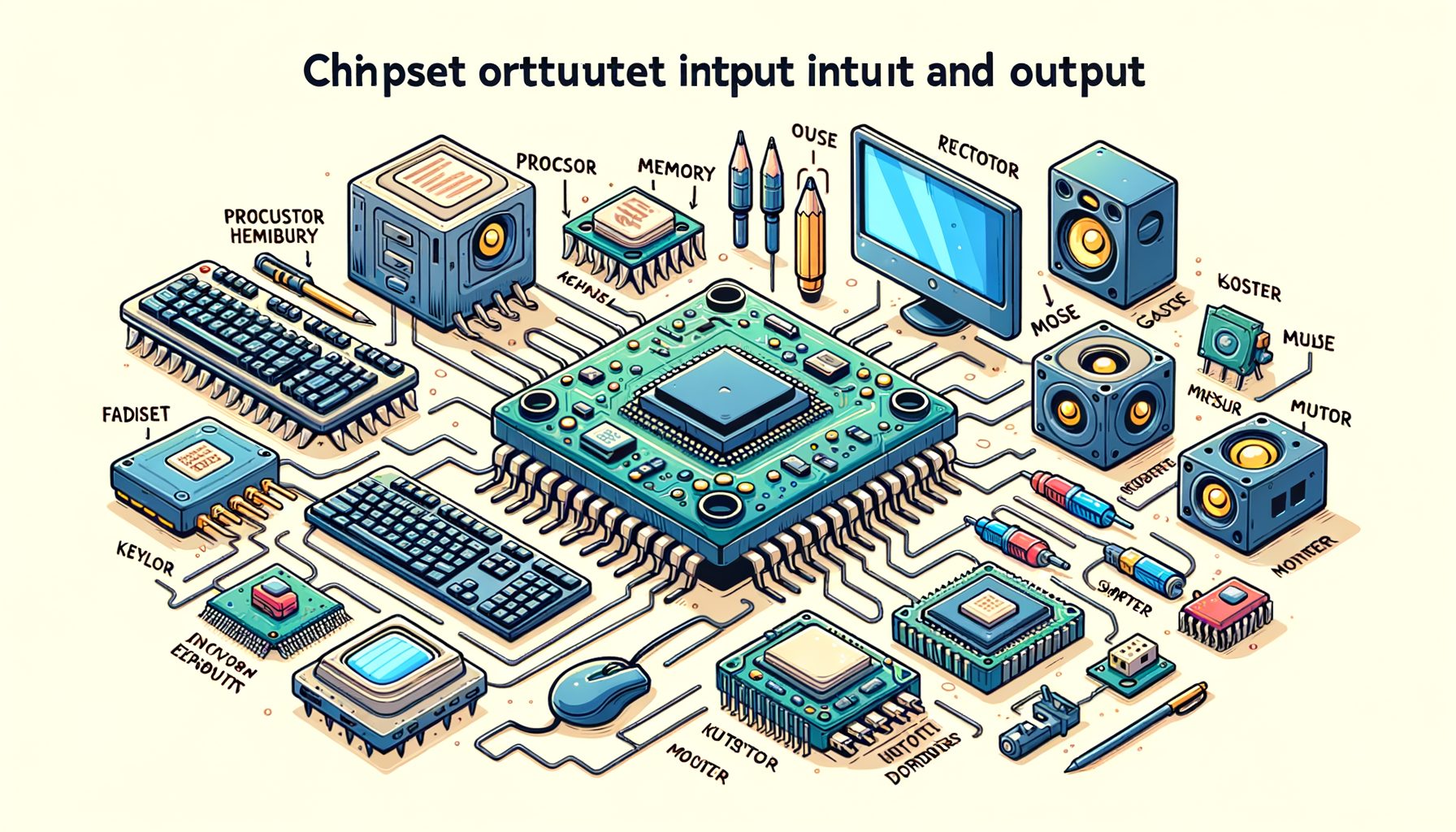
Serving as the central traffic manager, the chipset directs many of a computer’s input and output pathways. Modern desktops let the CPU handle memory and several high-speed PCI Express (PCIe) lanes directly—commonly used by the graphics card and one or more NVMe SSDs. Meanwhile, the chipset—called the PCH on Intel or the chipset hub on AMD—links to the CPU via a high-speed uplink and supplies additional I/O such as USB, SATA, Ethernet, audio, and extra PCIe lanes for expansion.
Picture a conductor ensuring every instrument (your devices) plays on time, on the right channel, without collisions. The CPU owns the fastest “front-row” lanes; the chipset adds breadth: more ports, more connectivity, and glue for both legacy and modern standards. In laptops and many mobile devices, this logic is often fused into a system-on-chip (SoC), yet the principle holds: the platform must efficiently route data among memory, storage, graphics, networking, and peripherals.
Under the hood you’ll find controllers for USB (2.0/3.x/USB4 depending on platform), SATA for 2.5-inch drives, and PCIe lanes for Wi‑Fi cards, capture devices, or extra NVMe. Timers, audio codecs, security engines (such as firmware TPM), and power management circuits coordinate sleep states and battery behavior. Firmware (UEFI/BIOS) initializes these parts at boot, assigns resources, and exposes features like PCIe link speed, “Above 4G Decoding,” and power-saving options that can change performance and compatibility.
One key detail: the chipset’s uplink to the CPU has finite bandwidth. If multiple heavy data streams—say, a fast external USB drive and a PCIe capture card—both reside behind the chipset, they share that uplink. By contrast, devices wired to CPU lanes (your primary GPU or a CPU-connected NVMe drive) don’t contend for that same path. Knowing which slots and ports route to the CPU versus the chipset is the first step to avoiding bottlenecks.
How Data Travels: From Keyboard Clicks to NVMe Blazing Speeds
Every action you take generates data that rides through buses, controllers, and drivers. A simple keyboard press likely travels over USB as a Human Interface Device (HID) event with tiny bandwidth needs but tight responsiveness. The operating system’s kernel receives an interrupt, the driver interprets the code, and the app reacts. That low-latency path prioritizes feel, not throughput.
At the other extreme, NVMe SSDs speak over PCIe with deep parallel queues. Rather than the CPU copying every byte, Direct Memory Access (DMA) lets the storage controller place data straight into system memory. The OS and NVMe driver set up queue pairs and doorbells; completion is signaled via interrupts or polling. With good queue management and efficient drivers, latency lands in the tens to low hundreds of microseconds on fast drives—orders of magnitude better than spinning disks and dramatically lower than typical USB storage.
Networking takes yet another route. A network interface card (NIC) or Wi‑Fi module offloads checksums and segmentation, then DMA’s packets to buffers. The kernel’s network stack schedules work, applies firewall rules, and hands data to apps. For online gaming or video calls, jitter (variation in latency) matters as much as raw bandwidth, so driver quality and power settings can shape the experience.
Crucially, data may traverse CPU-direct lanes or detour through the chipset. Kick off a huge copy from a USB 3.2 Gen 2×2 external SSD to a SATA HDD and both likely sit behind the chipset. The uplink becomes the shared “highway,” so other tasks (like a capture card on a chipset PCIe slot) may see reduced throughput. In our lab, moving a secondary NVMe drive from a chipset-connected M.2 slot to a CPU-connected slot improved sustained copy speeds by roughly 20–25% during heavy USB transfers—purely by removing uplink contention.
Here’s a quick look at typical interface capabilities:
| Interface | Peak theoretical bandwidth | Typical latency | Common uses | Notes |
|---|---|---|---|---|
| USB 2.0 | 480 Mb/s (~60 MB/s) | ~1–10 ms | Keyboards, mice, basic peripherals | Low power, legacy compatible |
| USB 3.2 Gen 1 | 5 Gb/s (~500–550 MB/s real) | ~1–10 ms | External HDDs/SSDs, webcams | Often labeled “SuperSpeed 5Gbps” |
| USB 3.2 Gen 2 / 2×2 | 10 / 20 Gb/s | ~1–10 ms | High-speed external SSDs | Requires device + port + cable match |
| Thunderbolt 3/4, USB4 | Up to 40 Gb/s | ~tens–hundreds µs (storage) | Docks, eGPUs, fast external NVMe | Protocol tunneling; cable quality matters |
| SATA III | 6 Gb/s (~550 MB/s real) | ~100 µs–ms | 2.5″ SSDs, HDDs | Great for capacity-first drives |
| PCIe 4.0 x4 (NVMe) | ~7.9 GB/s | ~tens–hundreds µs | Internal NVMe SSDs | Low latency, high parallelism |
| PCIe 5.0 x4 (NVMe) | ~15.8 GB/s | ~tens–hundreds µs | Next-gen NVMe SSDs | Thermals demand solid cooling |
Choosing the Right Platform: Lanes, Ports, and Bottlenecks
Before buying a motherboard or laptop, map your I/O needs. Count your displays, external drives, capture cards, VR headsets, SD readers, audio interfaces, and network links. Next, match that list to platform capabilities—PCIe lane counts, number and speed of M.2 slots, USB/Thunderbolt/USB4 ports, and whether those ports hang off the CPU or the chipset. That’s the difference between smooth workflows and frustrating slowdowns.
On many desktop platforms, the GPU receives x16 PCIe lanes from the CPU. One or two M.2 slots may also be CPU-connected. Additional M.2 slots, SATA ports, and most USB ports typically connect to the chipset. When multiple high-speed devices all sit on the chipset (for example, a 20 Gbps USB SSD, a PCIe capture card, and a SATA RAID), they share the chipset uplink. Fine for light or staggered loads—but during simultaneous heavy transfers, expect lower peak speeds.
Motherboards often call this out in their manuals with lane-sharing notes such as: “Using M2_2 disables SATA_2 and SATA_3” or “PCIe slot 2 operates at x4 if M2_3 is occupied.” These aren’t gotchas; they’re resource maps. For creators, that map is gold. If you edit 4K/8K footage from multiple NVMe sources and capture HDMI at the same time, place as many high-bandwidth devices on CPU lanes as possible, and pick a board with more total lanes and ports. Gamers usually care that the GPU has a full x16 link and the primary NVMe is CPU-connected; streamers should plan for capture and USB bandwidth too.
Practical steps:
– List everything you plug in and the bandwidth each needs (fast SSDs, cameras, DACs, etc.).
– Read the motherboard’s block diagram and footnotes; identify CPU- vs. chipset-connected slots/ports.
– Prefer CPU-connected M.2 for your primary NVMe scratch drive; use chipset M.2 for secondary storage.
– If Thunderbolt/USB4 is required, verify native support and use certified 40 Gbps cables.
– Leave headroom. An extra PCIe slot or spare M.2 can save you later.
Real example: A creator PC with one GPU, two NVMe drives, a PCIe capture card, and a 20 Gbps USB SSD ran smoother after moving the capture card to a CPU-adjacent slot and the main NVMe to the CPU M.2 socket. File imports and live capture no longer fought the chipset uplink; timeline scrubbing felt instantly snappier.
Tuning and Troubleshooting I/O: BIOS Settings, Drivers, and Cables
If performance falls short, tune from the ground up. Start in firmware (UEFI/BIOS):
– Manually set PCIe link speeds (Gen4 or Gen5) if “Auto” mis-negotiates.
– Enable “Above 4G Decoding” and “Resizable BAR” for modern GPUs and large memory-mapped devices.
– Adjust ASPM (Active State Power Management). Disabling can improve stability or reduce latency; enabling saves power on laptops.
– Confirm the intended M.2 slot runs at full lane width; some boards downgrade lanes when multiple slots are used.
– Keep your BIOS current for device compatibility and better memory/PCIe training.
Within the OS, install the latest chipset drivers from the platform vendor, along with GPU, storage (NVMe, RAID if used), and NIC/Wi‑Fi drivers. On Windows, verify that security features such as Memory Integrity (HVCI) and Kernel DMA Protection are enabled where possible; if a legacy driver fails under these protections, seek a signed update rather than disabling protection. On Linux, use lspci and lsusb to confirm each device’s bus and check negotiated link speeds.
Measure—don’t guess. Use CrystalDiskMark or fio for storage tests. Run iperf3 to validate network throughput. Watch DPC latency with tools like LatencyMon if you hear audio pops during recording; a misbehaving NIC or storage driver can cause spikes that you can fix with an update or changed power settings. Windows Performance Monitor (PerfMon) reveals disk queue depth and interrupt storms; on Linux, iostat, perf, and powertop help locate hotspots.
Never underestimate cables. A USB-C cable without proper e-marking might fall back to 5 Gbps or fail at high currents. Thunderbolt 3/4 and USB4 require certified 40 Gbps cables (often 0.8 m or shorter for passive). For external NVMe enclosures, ensure the bridge chipset supports your drive’s speed and that TRIM/SMART pass-through is enabled. For display stability, quality DisplayPort/HDMI cables prevent random black screens that look like GPU issues but are really signal-integrity failures.
Finally, consider IOMMU/VT-d for virtualization and device passthrough, and keep an eye on thermals. Overheating NVMe drives throttle aggressively; a simple heatsink can restore full sustained speed. With correct firmware settings, clean drivers, validated cables, and smart thermal design, most I/O mysteries get resolved.
FAQ: Quick Answers to Common I/O Questions
Q: Do chipsets affect gaming FPS?
A: Indirectly. FPS mostly depends on your GPU, CPU, and game settings. However, the chipset can influence loading times, asset streaming, and background tasks. If a game pulls data from a drive or capture device behind a saturated chipset uplink, stutters or longer loads may appear. Keeping the GPU and primary NVMe on CPU-connected lanes helps maintain consistency.
Q: Is more USB ports always better?
A: Quantity helps, but quality and topology matter more. Four high-speed ports that share a single controller can bottleneck under heavy simultaneous use. Prioritize ports with known speeds (10/20/40 Gbps), ensure the motherboard uses multiple controllers if you connect several fast devices, and use powered hubs for stability. Certified cables are essential for USB4/Thunderbolt performance.
Q: Can I use all M.2 slots at full speed?
A: It depends on the platform. Often, one or two M.2 slots run directly from the CPU at full x4, while additional slots share chipset lanes. Some boards also disable SATA ports when certain M.2 slots are occupied. Check the manual’s lane-sharing table and place your highest-priority NVMe drives in CPU-connected slots to avoid uplink contention.
Q: Why doesn’t my NVMe reach advertised speeds?
A: Common culprits include thermal throttling, a Gen3 link instead of Gen4/Gen5 (because of slot, adapter, or device limits), a chipset-connected slot competing for bandwidth, or old drivers/firmware. Verify the slot’s generation and lane count, add a heatsink, update firmware, and test with large sequential transfers to confirm peak throughput.
Q: Are external Thunderbolt SSDs as fast as internal drives?
A: They can come close, but internal NVMe on CPU PCIe lanes usually offers lower latency and more consistent throughput. Thunderbolt/USB4 tops out at 40 Gbps (theoretical ~5 GB/s), which is excellent for portable workflows. Still, protocol overhead and cable quality affect real results. For mission-critical scratch disks, internal NVMe often wins; for flexible, high-speed portability, Thunderbolt shines.
Conclusion
We explored how the platform—CPU lanes, the chipset, controllers, and firmware—shapes the flow of data between your apps and the real world. The big takeaway: performance isn’t just about a powerful CPU or GPU. It’s about placing the right devices on the right lanes, knowing which ports share bandwidth, keeping firmware and drivers current, and using proper cables and cooling. With that map in hand, you can avoid hidden bottlenecks, reduce latency, and make your system feel faster without spending a cent.
Here’s a practical call to action for today: list your connected devices and their bandwidth needs, open your motherboard manual to the block diagram, and label which ports and slots tie to the CPU versus the chipset. Move your primary NVMe and any latency-sensitive devices (like a capture card or audio interface) to CPU-preferred lanes. Update your BIOS, chipset, storage, and network drivers. Then run a quick benchmark suite—CrystalDiskMark for storage, iperf3 for networking, and a game or content creation workload you trust. Compare before-and-after results, and keep notes for future upgrades.
If you’re shopping, pick a platform with enough PCIe lanes, the USB/Thunderbolt/USB4 mix you need, and clear documentation on lane sharing. If you’re optimizing, tweak PCIe link speeds, enable Above 4G Decoding and Resizable BAR where applicable, and balance power-saving with responsiveness. For reliability, invest in certified high-speed cables and add heatsinks for hot NVMe drives.
Mastering I/O is like learning a new instrument: once you know where every note comes from and where it goes, you can play with confidence and grace. Start mapping your system today—what one change will you try first? Your next performance boost might be a single port swap away. Make the change, measure the difference, and enjoy the smooth, stutter-free experience you built with intention.
Sources and further reading:
– Intel ARK (chipsets and platforms): https://ark.intel.com/
– AMD chipset comparison: https://www.amd.com/en/chipsets
– PCI-SIG (PCIe specifications overview): https://pcisig.com/
– USB-IF (USB 3.x, USB4 basics): https://www.usb.org/
– NVM Express (NVMe fundamentals): https://nvmexpress.org/
– Microsoft: Kernel DMA Protection: https://learn.microsoft.com/windows/security/information-protection/kernel-dma-protection/
– LatencyMon (DPC latency analysis): https://www.resplendence.com/latencymon
– iperf3 (network benchmarking): https://iperf.fr/
– CrystalDiskMark (storage benchmarking): https://crystalmark.info/en/software/crystaldiskmark/