
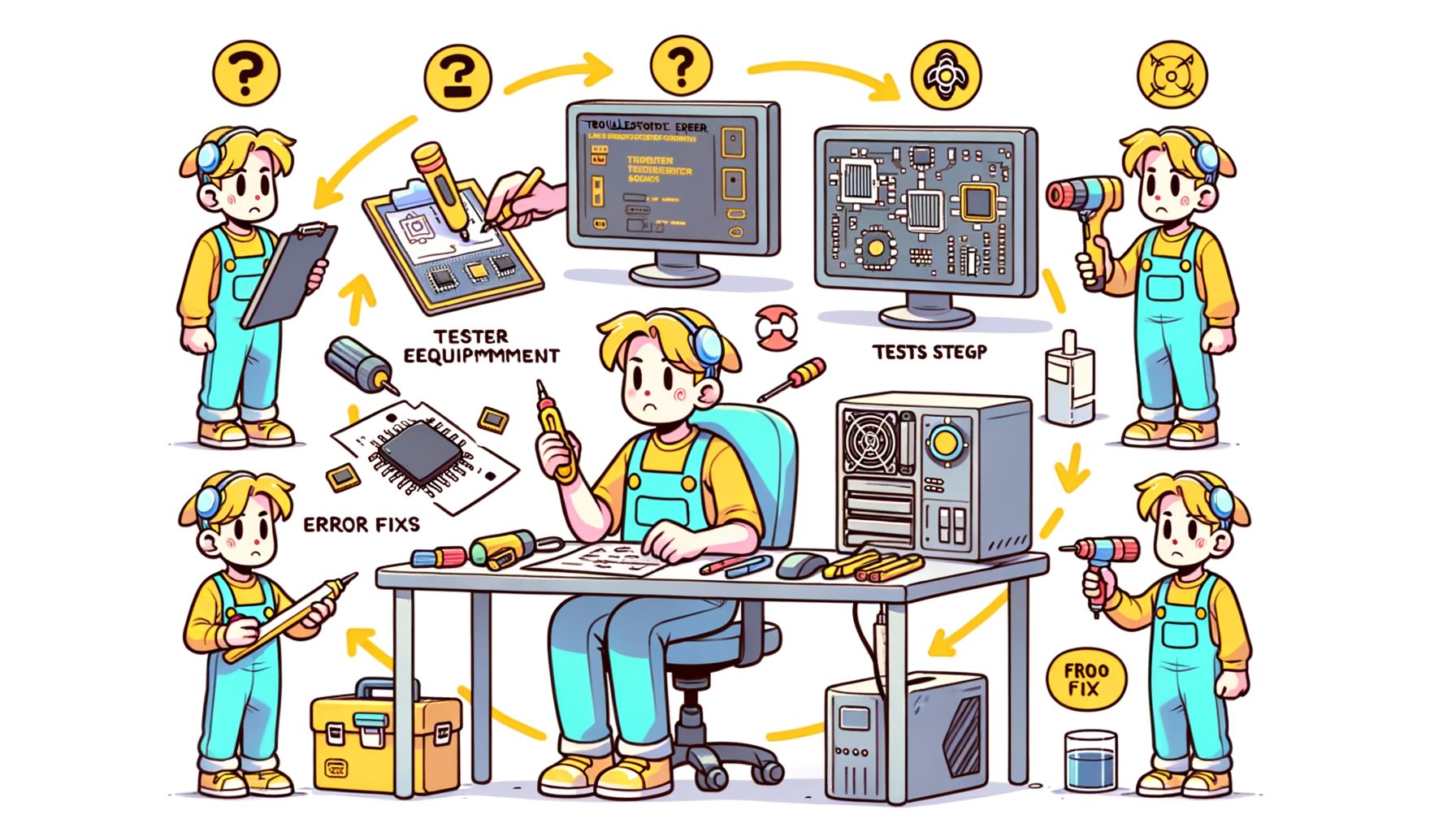
Mid-game or mid-project, your PC freezes, crawls, or outright crashes. Sound familiar? Chipset errors often sit at the center—quiet gremlins on the motherboard. They can kill USB ports, choke an SSD, produce random hangs, or drop blue screens and kernel panics. Good news: most are fixable with a clear plan. Here’s a guide that skips fluff and walks you through practical fixes—drivers, firmware, hardware checks, and preventive care. Whether you’re on Windows or Linux, you’ll find a single, actionable playbook to diagnose, repair, and prevent chipset errors—starting now.
Understand Why Chipset Errors Happen (and How to Spot Them Fast)
Before tackling fixes, it helps to know the chipset’s job. Picture it as the motherboard’s traffic controller, coordinating CPU, memory, storage, USB, PCIe devices, networking, and sometimes integrated audio. When faults hit this path, ripples spread—USB disconnects, storage timeouts, unstable PCIe devices (GPUs or NVMe SSDs vanishing), or outright crashes. Usual culprits include outdated chipset drivers, buggy BIOS/UEFI, heat issues (overworked VRMs, PCH, or SSD), unstable overclocks, power irregularities, and components that aren’t seated or cabled correctly.
Spotting chipset trouble quickly starts with symptoms and logs. On Windows, open Event Viewer (Windows Logs > System) and look for “WHEA-Logger,” “PCIe Bus Error,” or storage/USB controller resets. Device Manager entries with yellow exclamation marks often signal driver or resource conflicts. On Linux, run dmesg and journalctl -k to surface PCIe AER (Advanced Error Reporting) messages, I/O resets, or ACPI/firmware warnings. Patterns tell the story: intermittent USB drops often hint at power or firmware quirks; SSD stutters may point to PCIe link issues or a heat-throttled NVMe; frequent BSODs under load can indicate unstable XMP/EXPO memory settings that spill over into chipset stability.
Two quick split tests help: did the problem begin right after a Windows update, driver change, or BIOS flash? Roll back and retest. Do errors appear during heat or heavy load (rendering, gaming, compiling)? Watch temperatures and power. Tools like HWiNFO (Windows) or lm-sensors (Linux) reveal CPU package temps, PCH temps if exposed, and SSD controller heat. Give the build a once-over too: loose front-panel USB headers, bent pins, barely seated M.2 drives, or overtight PCIe riser bends can all create “mystery” chipset errors. A careful reseat often beats hours of software tweaks—especially after a move or case swap.
Use the quick reference table below to map symptoms to probable causes and first checks:
| Symptom | Likely Cause | First Checks | Estimated Fix Time |
|---|---|---|---|
| USB devices disconnect randomly | Chipset/USB driver bug, power draw, loose header | Update chipset/USB drivers; try powered hub; reseat headers | 15–45 min |
| NVMe SSD stutter or disappears | PCIe link issue, overheating, outdated firmware | Check temps; update SSD firmware; set PCIe Gen in BIOS; reseat M.2 | 30–60 min |
| BSOD “WHEA” under load | Unstable memory/XMP, CPU/SoC voltage, BIOS bug | Disable XMP/EXPO; update BIOS; run MemTest; check VRM temps | 1–2 hrs |
| Random freezes after OS update | Driver regression or firmware mismatch | Roll back driver; clean install chipset drivers; re-test | 30–90 min |
| Wi‑Fi/Bluetooth flaky | PCIe/USB power saving, antenna seating, RF interference | Disable aggressive power saving; reseat/align antennas; driver update | 20–60 min |
Step-by-Step Fixes: Drivers, Firmware, and OS-Level Repairs
Most chipset errors trace back to software and firmware. Start here—low risk, quick wins. Update chipset drivers from the original vendor, not only through Windows Update. On Intel platforms, the Intel Driver & Support Assistant can auto-detect and refresh chipset INF, ME (Management Engine), and related controller drivers. On AMD systems, grab the latest AMD Chipset Drivers matched to your socket and OS. Those packages ship PCI, GPIO, I2C, and power plan optimizations that affect stability.
On Windows, perform a clean chipset driver install: remove older vendor utilities, reboot, install the newest chipset package, then reboot again. If problems linger, open Device Manager, right-click affected devices, choose Uninstall device (check “Delete the driver software for this device”), then Scan for hardware changes. Use pnputil /enum-drivers and pnputil /delete-driver to purge legacy conflicts if needed. After repeated crashes, system files may be wounded—run sfc /scannow, then DISM /Online /Cleanup-Image /RestoreHealth to repair the component store.
Next, update BIOS/UEFI. Firmware governs chipset initialization, PCIe link training, power states, and memory timing. A solid firmware often snuffs out intermittent PCIe errors or WHEA events. Use your motherboard’s built-in flasher (Q-Flash, EZ Flash, M-FLASH) from a FAT32 USB drive; flashing inside Windows is best left to vendor-recommended scenarios. After a major BIOS change, load defaults, then reapply only what’s needed (boot order, fan curves). Using XMP/EXPO? Test both enabled and disabled to compare stability.
Linux users should inspect kernel logs with dmesg | egrep -i “pcie|nvme|usb|aer|whea” and update firmware via fwupdmgr get-updates && fwupdmgr update where supported. Keep the kernel reasonably current; newer releases improve PCIe AER handling, AMD/Intel platform quirks, and power management. Also update microcode (intel-microcode or amd64-microcode) from your distro. Validate with stress tools: stress-ng for CPU/memory, fio for storage, and iperf3 for networking.
Thermals and power tuning matter at the OS level too. On laptops, pick balanced or vendor-optimized power plans. Desktops benefit from pruning background tasks that spike DPC latency and destabilize drivers. LatencyMon (Windows) can flag offenders during audio/video workloads. If USB devices keep dropping, temporarily disable USB selective suspend or PCIe ASPM and retest. For NVMe quirks, fix PCIe speed to Gen 3 in BIOS to stabilize a marginal link, then step back up once cables, risers, or thermals are proven. Document each tweak and test in short loops—update, reboot, test, read logs—so you know which change actually fixed the issue.
Helpful links:
- Intel Driver & Support Assistant
- AMD Chipset Drivers
- Microsoft Driver and Deployment Docs
- fwupd Project (Linux firmware updates)
Hardware-Level Troubleshooting: Power, Thermals, and the Physical Layer
If software changes don’t hold, move down to the hardware. Power off, flip the PSU switch, and discharge by holding the power button for a few seconds. Open the case and inspect under good light. Reseat the GPU, memory, and M.2 SSDs. Tighten M.2 screws snugly (not too tight), confirm thermal pads are placed correctly, and check motherboard standoffs to prevent shorts. Verify front‑panel and Type‑C headers are fully seated. Replace or reroute suspect PCIe riser cables; cheap or sharply bent risers often cause PCIe training failures and intermittent dropouts.
Heat is a frequent trigger, especially under load. Dust chokes airflow, pushing VRM and PCH temps higher until instability or throttling appears. Clean filters, fans, and heatsinks with compressed air; if years have passed, consider new CPU thermal paste. Small-form-factor cases benefit from better intake/exhaust balance; a single additional 120 mm fan can move the needle. Watch SSD controller temps; if NVMe drives cross 70–80°C, add a heatsink or shift them away from the GPU’s hot zone.
Power delivery matters more than most expect. An aging or undersized PSU can force random resets when CPU and GPU spike together. Aim for roughly 30% wattage headroom above peak. Use separate PCIe power cables for the GPU (avoid daisy-chaining) and ensure the 24‑pin and 8‑pin EPS connectors are fully seated. On shaky household power, a UPS or line‑interactive AVR can smooth dips. Laptop owners should test with and without the charger and confirm the adapter wattage meets factory spec.
Now address link stability and memory training in BIOS/UEFI. Seeing PCIe AER errors? Lock the GPU slot to PCIe Gen 3 temporarily or disable ASPM to check whether power-saving states are the trigger. Turn on Above 4G Decoding and Resizable BAR only after the system proves stable. For memory, disable XMP/EXPO and validate at JEDEC speeds, then ramp up in small steps. Run a memory test (e.g., MemTest86) for at least one full pass; memory faults often surface as chipset‑related WHEA events. If you’ve changed many settings, do a CMOS reset to clear corrupted configurations. Finally, confirm motherboard standoffs, inspect for bent CPU socket pins (LGA sockets), and make sure cooler mounts aren’t overtightened and flexing the board. Small physical fixes often erase “software” errors.
Preventive Maintenance and Monitoring to Avoid Future Chipset Errors
After you stabilize the system, keep it that way with a simple routine. Create a maintenance calendar: quarterly dust cleaning, BIOS/UEFI checks twice a year, and monthly driver/firmware reviews. Don’t upgrade everything at once. Apply one change, reboot, then live with it for a day. Keep a basic change log (date, change, result). That discipline makes bad updates easy to roll back and highlights what truly helped.
Build a lightweight monitoring stack. On Windows, use HWiNFO to log temperatures, voltages, and fan speeds; pin Windows Reliability Monitor to catch crash patterns quickly. On Linux, set up lm-sensors and persistent journald logs, and consider netdata or Grafana for continuous tracking on workstations or servers. For storage, check SMART monthly with CrystalDiskInfo (Windows) or smartmontools (Linux). A spike in reallocated sectors, CRC counts, or media errors can look like chipset trouble but actually signal failing drives or cables.
Backups and rollback matter. Create Windows restore points before big driver changes. Keep a bootable USB with your OS installer and vendor firmware tools handy. Power users can export driver lists (pnputil /export-driver) and capture an image backup with built-in or third-party tools. On Linux, retain an older kernel in GRUB to revert quickly if a new release regresses PCIe or ACPI behavior.
Airflow and cable management are reliability features, not just aesthetics. Consistent airflow prevents hotspots around the PCH, VRM, and M.2 drives. Use proper cable lengths to avoid strain on headers and slots. Heavy workloads (gaming, 3D rendering, data science) may justify a slightly higher TDP cooler and a PSU with extra headroom. Laptop users can benefit from a cooling pad and periodic fan cleaning. With these habits, chipset errors become rare rather than recurring.
Useful resources for ongoing maintenance:
- HWiNFO (Windows monitoring)
- smartmontools (SMART on Linux/Windows)
- MemTest86 (memory stability testing)
- Microsoft DISM Technical Reference
Q&A: Common Questions About Chipset Errors
Q: How do I know if my issue is really a chipset error?
A: Look for patterns that touch multiple subsystems (USB, storage, PCIe) and read the logs. WHEA-Logger entries, PCIe AER messages, or repeated resets across different devices usually implicate the chipset path rather than a single failing part.
Q: Should I update BIOS/UEFI even if everything seems fine?
A: When stable, update selectively—target releases that mention PCIe stability, memory compatibility, or security. During active troubleshooting, a carefully executed BIOS update often pays off.
Q: Can bad RAM cause chipset-like errors?
A: Absolutely. Memory instability can trigger WHEA events, I/O timeouts, and random crashes. First test RAM with XMP/EXPO off, validate with MemTest86, then re-enable tuned profiles if stable.
Q: Do USB hubs help with disconnects?
A: A powered USB hub can stabilize high-draw peripherals and lighten the load on motherboard ports. Pair it with updated USB/chipset drivers and firmly seated headers for best results.
Q: Is it safe to lock PCIe to Gen 3?
A: Yes—as a diagnostic move. If errors vanish at Gen 3, investigate riser cables, slot integrity, device firmware, or thermals before returning to faster link speeds.
Conclusion: Stabilize Your System and Keep It That Way
You’ve seen how to recognize chipset errors, fix them methodically, and keep them from coming back. The telltales—USB drops, NVMe hiccups, WHEA or AER logs—lead you from quick wins (driver updates, clean installs, OS repairs) to deeper measures (BIOS/UEFI tuning, reseating hardware, improving power and thermals). Smart maintenance—monitoring temps and SMART data, pacing updates, keeping rollback options—cements long-term stability. With this playbook, unpredictable crashes give way to a system that simply works.
Your next step is straightforward. Start with software: update chipset drivers using the official Intel or AMD tools, review logs, and stress-test. If issues persist, work the hardware list—reseat components, stabilize PCIe links, improve cooling, and verify power delivery. Keep notes so successes are repeatable. Maintain a routine—quarterly dusting, periodic firmware checks, logged updates—and the machine will repay you with fewer surprises and longer component life.
If you’re troubleshooting today, set aside 60 minutes for phase one: driver cleanup, a fresh chipset install, and basic thermal checks. Small, deliberate steps beat guesswork. After a clean week, capture a backup and set a short maintenance calendar. Future-you will thank you.
Tech should empower you—not slow you down. With a steady mindset and a clear process, chipset errors turn into solvable puzzles instead of showstoppers. What’s the first fix you’ll try right now?